You just opened your business. You're excited. But when you search for it on Google... nothing shows up. Sound familiar?
Most customers discover local businesses on Google Search and Maps before they visit a website or social media page. If your Google Business Profile isn't set up correctly, you're missing potential customers every day.
This guide walks you through the entire Google Business Profile setup process, step by step. No jargon. No guesswork. Just a simple checklist with screenshots to help you get your business found faster.
Are You Eligible for a Google Business Profile?
Before you start, make sure your business qualifies. Most local businesses do, but it's worth checking first.
You can create a Google Business Profile if:
You have a physical location or visit customers in person (such as a store, office, plumber, or cleaning service).
Your business is open or will open within the next 90 days.
You interact with customers face-to-face. Online-only businesses without in-person contact usually aren't eligible.
Exceptions: Some businesses, such as ATMs, kiosks, and shops located inside larger stores, may also qualify.
If your business meets these requirements, you're ready to create your Google Business Profile.
Step 1: Create Your Google Business Profile
Now for the fun part — let's actually build your profile.
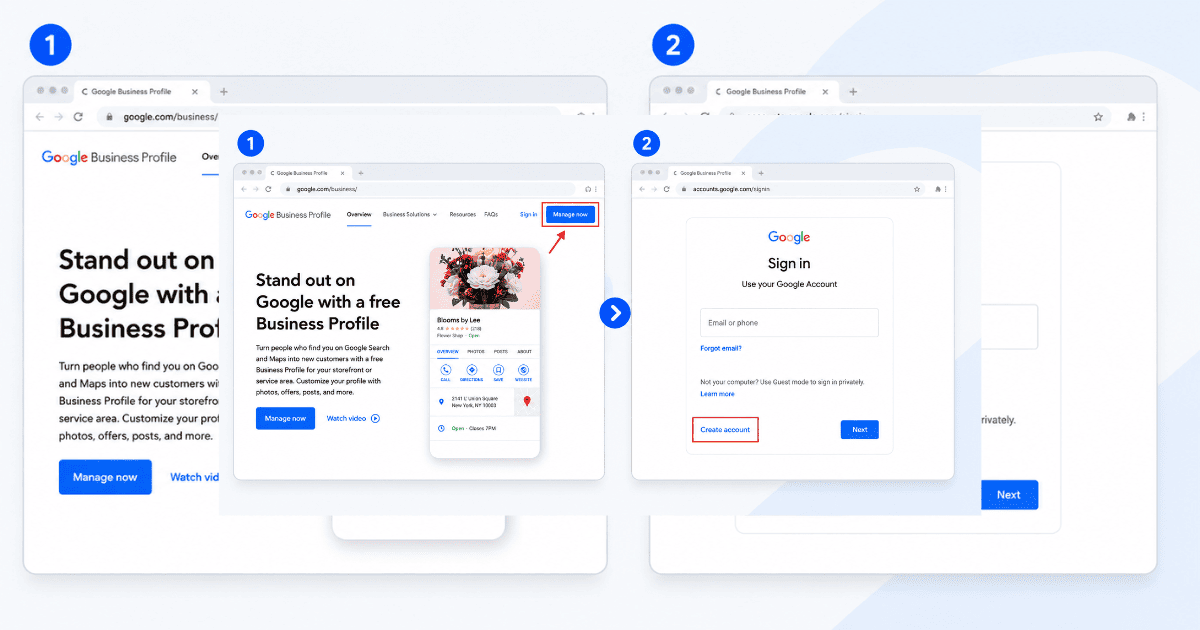
Go to google.com/business and click Manage Now. If you already have a Gmail account for your business, use that to sign in. If not, create one first—it keeps your business info separate from your personal account.
Google will ask for your business name. Type it in and hit next.
That's it. You've just started your profile. The next steps will help you fill in the details that make it show up in search—and look good once it does.
Step 2: Add Your Business Name (The Right Way)
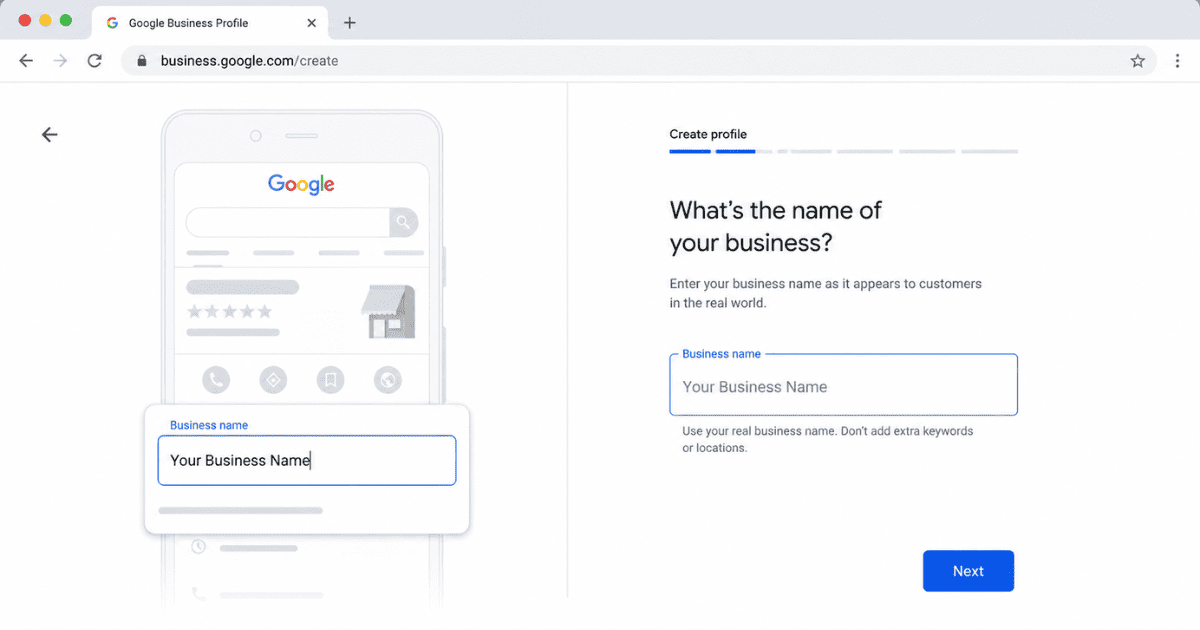
This step seems simple, but a lot of new business owners get it wrong — and it can hurt them later. Use your real business name. The exact name on your sign, your receipts, and your website. Nothing more.
Wrong: Sam's Bakery – Best Cakes Karachi – Order Now
Right: Sam's Bakery
Why does this matter? Google doesn't allow keyword stuffing in business names. Adding extra words like your city or services might seem like a smart SEO trick, but Google can flag your profile — or even suspend it.
Keep it clean. Keep it consistent with everywhere else your business appears online.
Step 3: Choose the Right Business Category
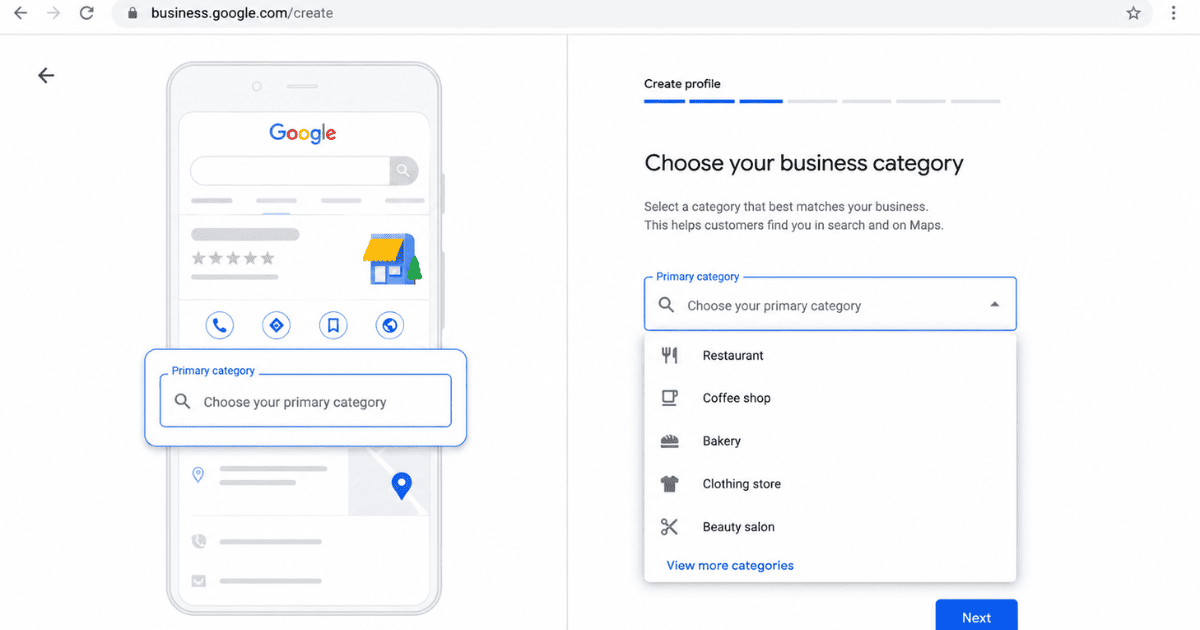
Choosing the right business category is one of the most important parts of setting up your Google Business Profile. It helps Google understand what your business does and when to show it in local search results.
You'll choose two types of categories:
Primary Category: This is your main business category. Be as specific as possible. For example, if you own a bakery, choose "Bakery" instead of a broad category like "Store.
Secondary Categories: These describe other services you offer. For example, a bakery that also creates custom cakes can add "Wedding Cake Designer" as a secondary category.
Real-world example: A bakery owner selected "Store" instead of "Bakery" as the primary category. After updating it, Google had a clearer understanding of the business, and the profile became more relevant for bakery-related searches.
Tip: Search for businesses like yours in your city and see which categories the top-ranking profiles use. This is a simple way to find the most relevant category for your business.
Step 4: Set Your Location or Service Area
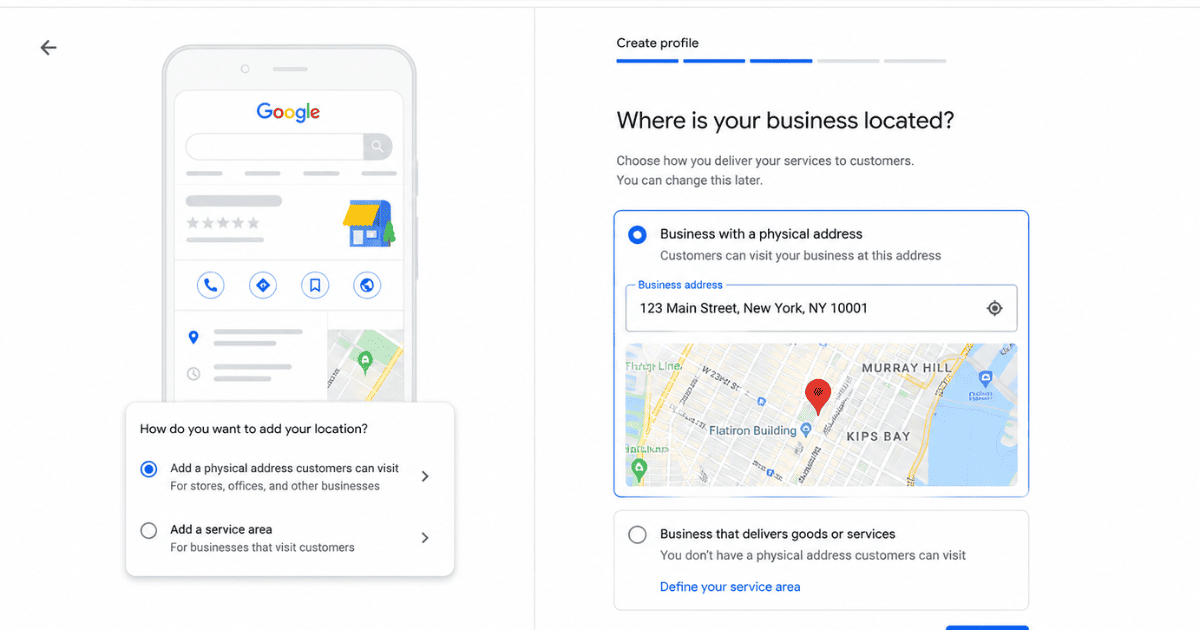
Every business doesn't use an address the same way. Choose the option that matches how you serve customers.
If customers visit you (a store, salon, restaurant, or clinic):
Enter your exact address. Double-check the street name, building number, and zip code. Then check the map pin—make sure it's placed on your actual building, not just somewhere nearby. A wrong pin sends customers to the wrong place.
If you go to customers (plumber, cleaner, or mobile mechanic):
Choose "service area" instead of a public address. You'll enter the cities or zip codes you cover. You don't need to show your exact home or office address — Google will only display the areas you serve.
Getting this right matters a lot. It directly affects who sees your business when they search "near me.
Step 5: Add Your Contact Details (So Customers Can Reach You)
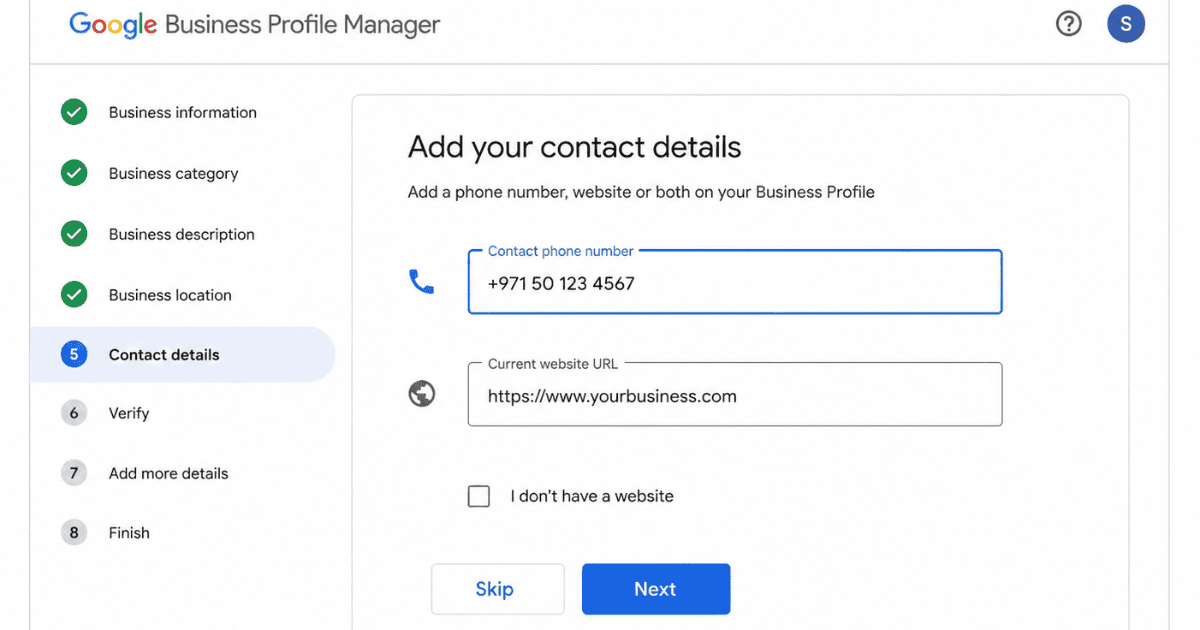
Now let's make it easy for customers to actually reach you.
Phone number: Use a local number, not a toll-free one. A local number makes your business feel more real and more connected to the community — and customers trust it more.
Website: Add your website link if you have one. No website yet? That's okay for now — you can always add it later. Just make sure the profile itself is complete in the meantime.
Common mistake: Double-check your phone number before publishing. Even one incorrect digit can cost you potential customers.
Step 6: Set Your Business Hours (Avoid Frustrating Customers)
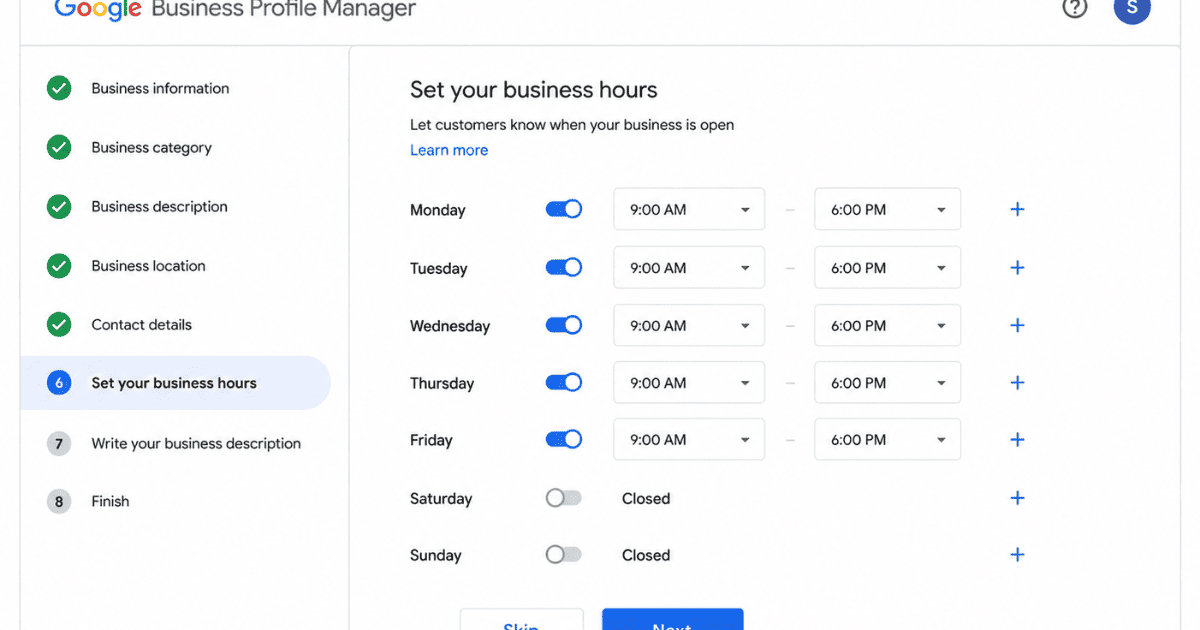
Nothing frustrates a customer more than showing up to a closed business—especially when Google told them you'd be open. Add your regular hours for each day of the week. If you're closed on a specific day, mark it clearly instead of leaving it blank.
Don't forget holiday hours too. If you're closing early for a holiday or staying shut the whole day, update it in advance. Google lets you schedule these ahead of time, so you don't have to remember on the day itself.
Real example: A shop owner closes early for Eid but forgets to update Google. Customers show up, find it closed, and leave a bad review — not because of bad service, but because of outdated hours.
Keeping this updated takes two minutes and saves you from losing customers over something completely avoidable.
Step 7: Write Your Business Description
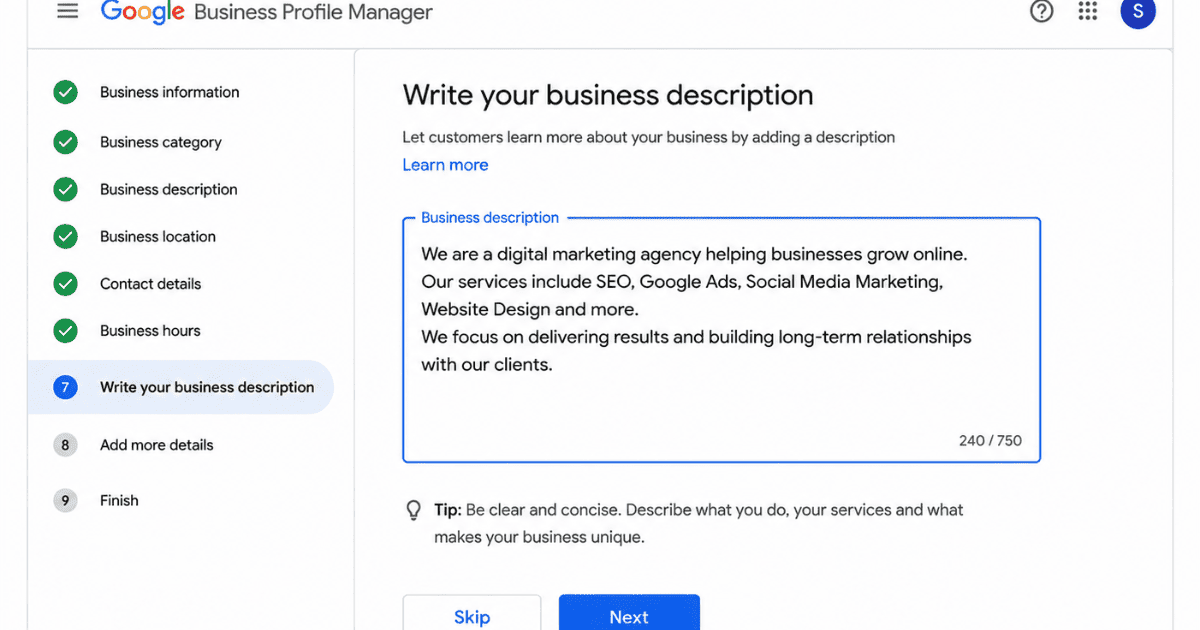
This is your chance to tell customers what you do—in your own words.
You get 750 characters, so keep it clear and to the point. Explain what your business offers, who it's for, and what makes you different. Skip the sales talk. Just be honest and clear. It also helps to naturally include a few words customers might actually search for—but don't force them in.
Wrong: "Best bakery in town, best cakes, best prices, order the best cakes today!"
Right: "We bake fresh cakes and pastries daily, using simple, quality ingredients. Custom orders welcome for birthdays, weddings, and events.
See the difference? The second one sounds like a real person wrote it—because keyword stuffing doesn't just look bad; it can also hurt your ranking instead of helping it.
Step 8: Upload Photos (With the Right Specs)
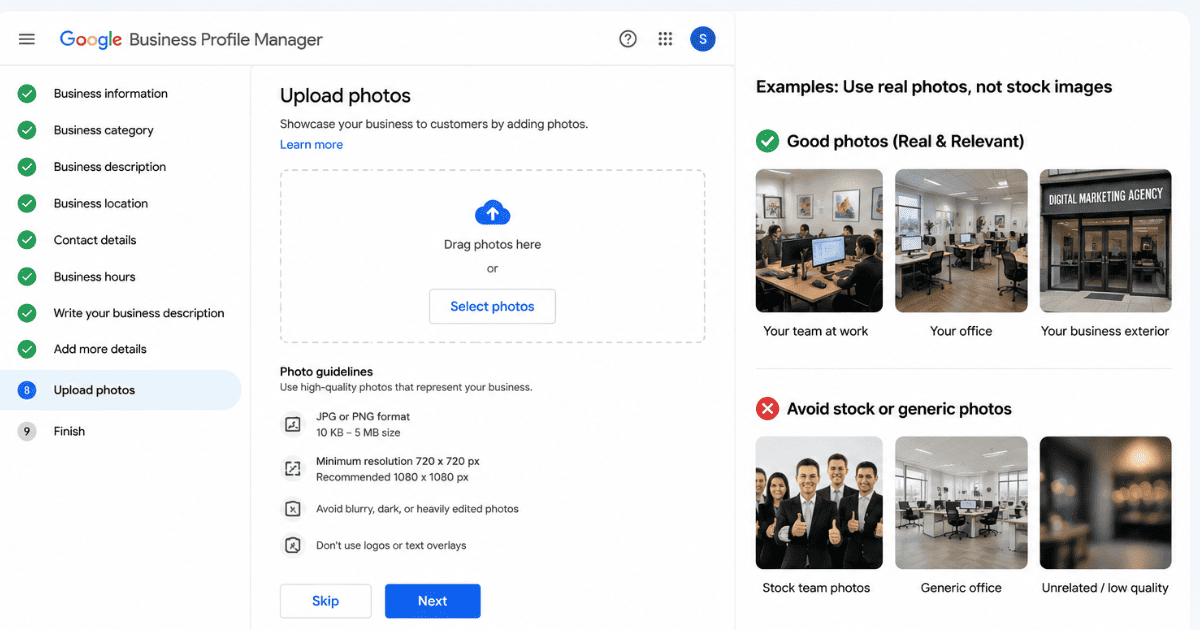
Photos are one of the easiest ways to build trust — and most new businesses either skip this step or upload the wrong kind of images.
Start with these three:
A clear logo or profile photo
A cover photo of your storefront or workspace
A few photos of your products, services, or team
Exact specs to follow:
Format: JPG or PNG
File size: between 10 KB and 5 MB
Minimum size: 720 x 720 pixels
Cover photo size: 1080 x 608 pixels works best
One more tip — use real photos, not stock images. A real photo of your actual shop or team builds more trust than a perfect stock photo ever will. Customers can usually tell the difference, and so can Google.
Pro Tip: Upload new photos regularly. Fresh images show customers that your business is active and well maintained.
Step 9: Add Your Services or Products (Help Customers Find You)
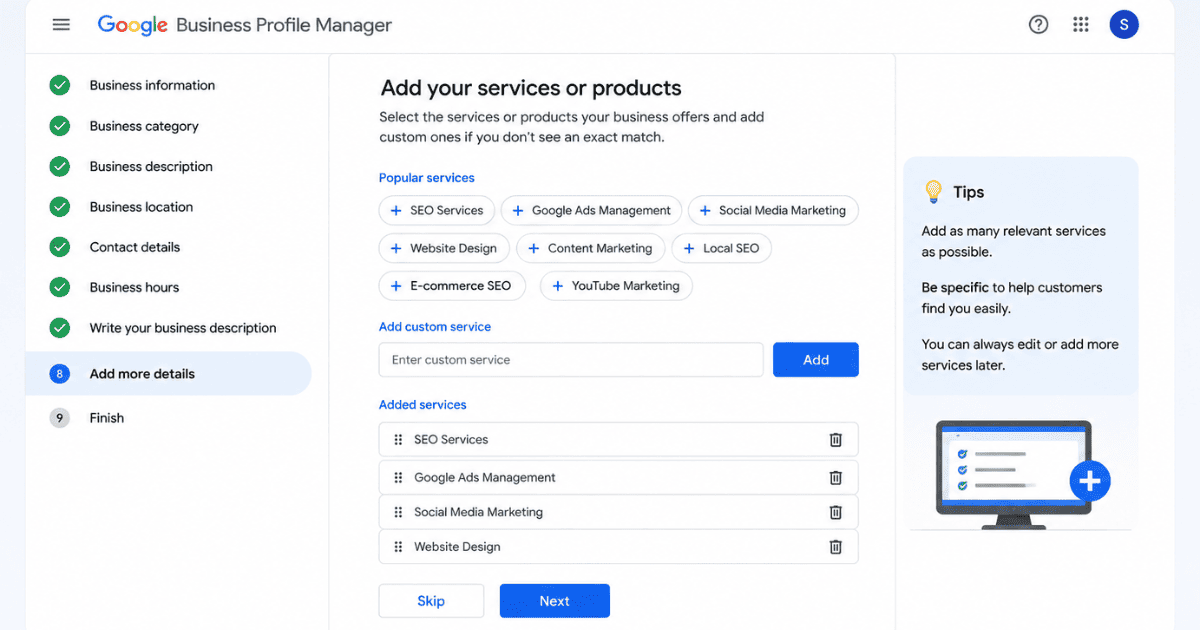
This step helps Google understand exactly what you sell so it can match you with the right searches. List each service or product separately. Don't just write one-word labels—add a short description for each one too.
Example for a salon:
Instead of just "Haircut," write "Haircut—includes wash, cut, and blow dry. Walk-ins welcome.
Use the same words your customers would use when searching. If people usually search "AC repair" and not "HVAC maintenance," use the term they actually type.
The more detail you add here, the easier it is for Google to show your business for the exact things people are searching for.
Step 10: Verify Your Business
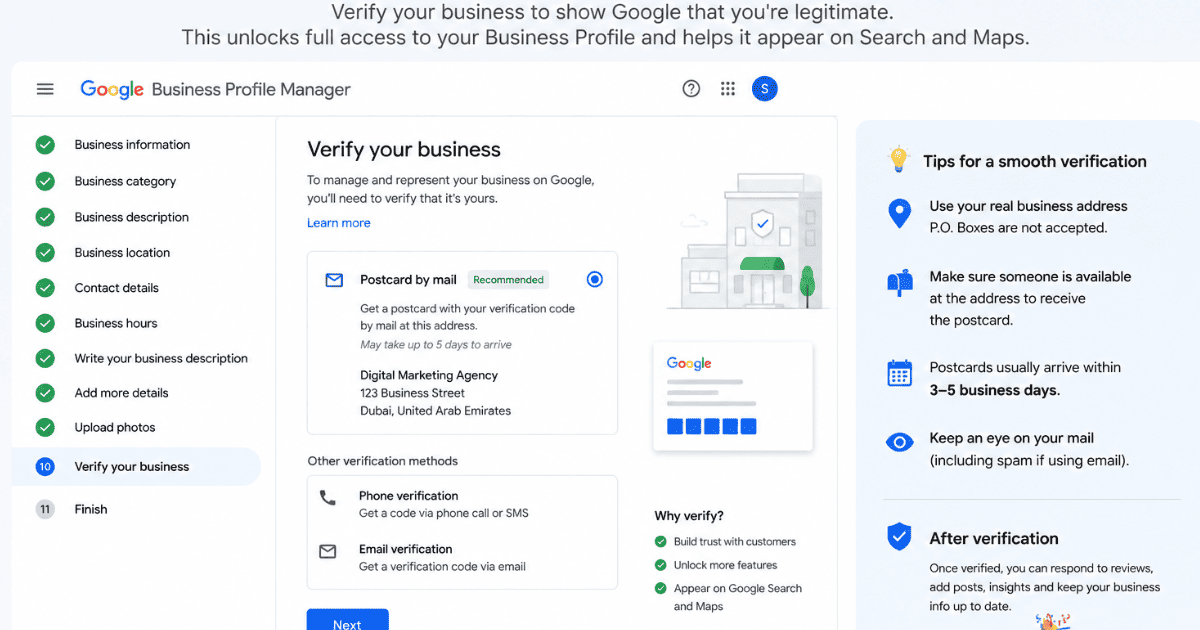
This is the final step before your profile goes live — and it's important. An unverified profile can be removed from Google Search and Maps, so don't skip it.
Google offers a few ways to verify:
Postcard by mail — Google sends a code to your business address. This usually takes 7 to 14 days.
Phone or text — if you're eligible, Google sends a code instantly to your phone.
Video verification — this has become the most common method in 2026. You record a short video showing your storefront, signage, and inside your business and submit it for review.
Google decides which verification methods are available for your business. If video verification is offered, follow the on-screen instructions carefully.
Step 11: Publish Your First Post
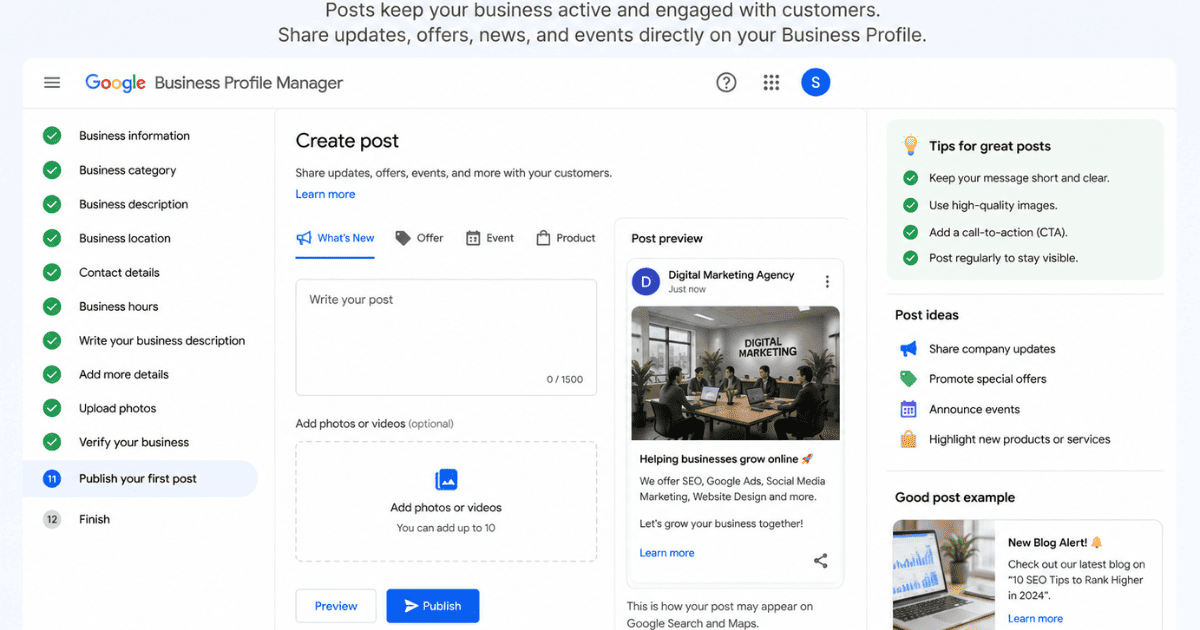
Once verified, don't just leave your profile sitting there. Publishing your first post shows Google — and customers — that your business is active and real.
Go to the "Posts" section on your profile and create a simple welcome post. Introduce your business, mention what you offer, or share an opening promotion if you have one.
Keep it short, add a photo if you can, and make sure there are no typos. You have up to 1,500 characters, but shorter posts usually get read more.
Simple example: "We're now open! Sam's Bakery offers fresh cakes, pastries, and custom orders daily. Stop by and say hello.
This one small post helps your profile feel active from day one instead of looking empty and untouched. Your first post doesn't need to be perfect. The goal is simply to show customers that your business is active.
Step 12: Start Getting Reviews
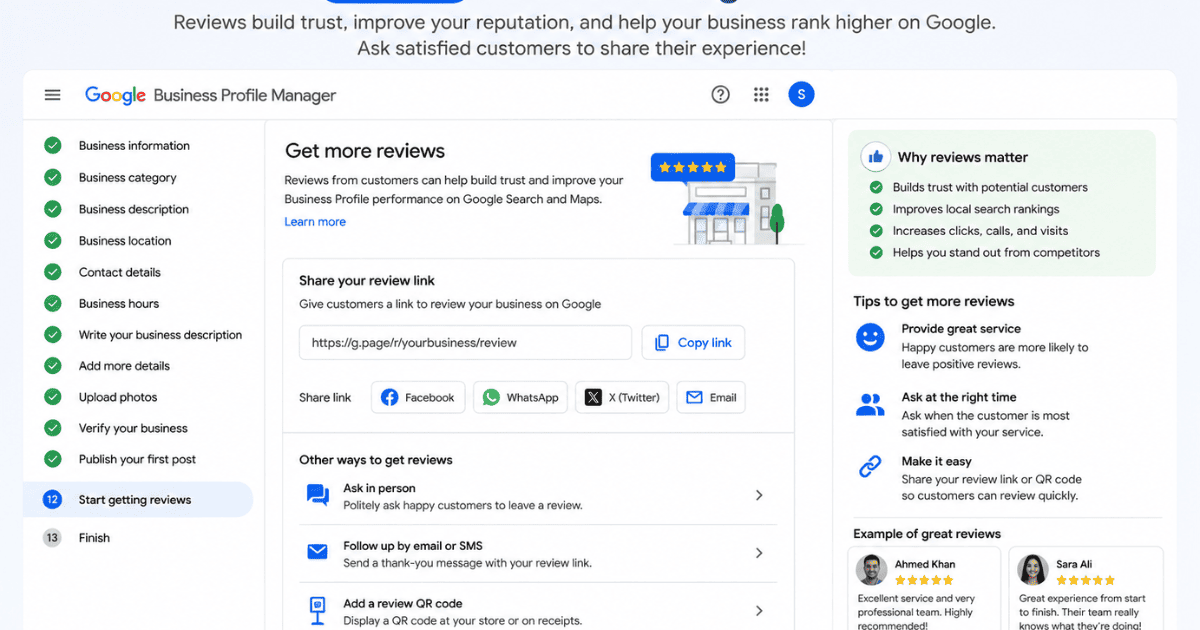
Reviews are one of the biggest trust signals on your profile — and one of the easiest things to get right from the start.
Start like this.
Ask your first 5 to 10 customers directly. After a good experience, just say, "If you liked our service, a quick Google review would really help us." Most happy customers are glad to help — they just need to be asked.
Make it easy for them. Go to your profile, generate your review link, and share it directly through text, WhatsApp, or a printed card at checkout.
One important rule: never pay for reviews or offer discounts in exchange for them. Google doesn't allow it, and it can get your profile penalized.
Once reviews start coming in, reply to every one of them—good or bad. It shows customers you're paying attention. Never ask employees or family members to leave fake reviews.
The Big 2026 Update: Q&A Is Gone, Ask Maps Has Replaced It
Every new business owner should know this before moving forward.
For years, Google let customers ask questions directly on a business profile, and owners could answer them. That feature is gone now.
In its place, Google introduced Ask Maps—an AI feature that answers customer questions automatically, in real time. So if someone asks, "Do they have parking?" or "Is this open on Sunday?" Google's AI answers it instantly, using information already on your profile.
This means you can't write answers yourself anymore. But you can still control what the AI has to work with.
Do this:
Keep your profile complete and accurate — hours, services, photos, everything.
Encourage detailed reviews, since Ask Maps also pulls information from what customers write.
Keep your website updated as well, as it can also be used as a resource.
The better your information is, the better the AI's answers will be — and the more accurate picture customers get of your business.
Common Mistakes New Businesses Make
A few small mistakes can quietly hurt your profile, even if everything else is done right. Watch out for these.
Leaving fields blank. An incomplete profile looks less trustworthy—to both customers and Google.
Outdated hours. Especially around holidays. Nothing frustrates customers more than showing up to a closed business.
Inconsistent business info. Your name, address, and phone number should match exactly across your website, Google profile, and other directories. Even small differences, like a missing suite number, can cause trust issues.
Ignoring reviews. Not replying — especially to negative ones — makes it seem like no one's paying attention.
Setting it up once and forgetting about it. A profile that's never updated slowly loses visibility over time.
Choosing the wrong category just to "rank higher." It usually backfires instead of helping.
Avoiding these mistakes is often more valuable than any advanced trick — because most competitors are still getting the basics wrong.
Google can suspend profiles that violate its business listing guidelines — so keep everything accurate.
Simple Weekly Maintenance Routine (15 Minutes a Week)
Task | What to Do | Time Needed | Why It Matters |
Check Business Hours | Make sure your opening hours are correct, especially before weekends and holidays. | 2–3 mins | Prevents customer frustration and keeps your profile accurate. |
Reply to New Reviews | Thank customers for positive reviews and respond professionally to negative feedback. | 3–5 mins | Builds trust and shows you value customer feedback. |
Upload 1–2 New Photos | Add recent photos of your business, products, team, or completed work. | 2–3 mins | Fresh photos improve engagement and make your profile look active. |
Publish One Google Post | Share an update, promotion, event, or useful business tip. | 3–4 mins | Keeps your profile active and gives customers new content to see. |
Review Business Information | Check for outdated services, incorrect contact details, or missing information. | 2 mins | Ensures customers always see accurate and up-to-date information. |
Weekly Goal: Spend just 15 minutes each week maintaining your Google Business Profile. Small, consistent updates are more effective than making major changes every few months. An active profile builds trust with customers and sends positive signals that can support your local search visibility.
FAQs
How do I create a Google Business Profile?
Go to google.com/business, sign in with a Gmail account, and enter your business name. Google will guide you through the rest — location, category, and contact details. The whole setup takes about 15–20 minutes.
What are the requirements for a Google Business Profile?
You need a real business that either has a physical location or meets customers in person. Your business should also be open or opening within the next 90 days. Fully online businesses usually don't qualify.
Is a Google Business Profile free?
Yes, completely free. There's no cost to create, verify, or manage your profile. Google doesn't charge for any part of the standard setup.
Can you have two Google Business Profiles at the same address?
Only if they're genuinely two separate businesses operating from that location, like a salon and a spa sharing a building; creating duplicate profiles for the same business isn't allowed and can get both listings suspended.
How long does it take to get a Google Business Profile live?
Once you finish setup, it usually depends on verification. Phone or video verification can go live within minutes, while postcard verification can take 7–14 days.
Final Thoughts
Setting up your Google Business Profile isn't hard. Just follow the steps. Add your details. Upload real photos. Get verified. Then stay active with posts and reviews.
Most businesses that struggle aren't doing anything wrong. They're just not doing anything at all. A complete, active profile will always beat an empty one. Take it one step at a time. Complete your profile today. Keep it updated every week. That's how you get discovered by local customers.
Trust Disclaimer
This guide is based on hands-on experience helping businesses set up and optimize their Google Business Profiles. Steps and features are accurate as of 2026, but Google frequently updates its platform—always double-check current settings on your own profile. Results may vary depending on your industry, location, and competition.